Learn about AI for accountingJoin live workshops

Ask the support agent

Just ask a direct question or search related articles from the Knowledge Base.

Support Center / Workpaper Agent / Journal Entries

Draft and post journal entries from a workpaper

New

Turn a completed Workpaper Agent workbook into ERP-ready journal entries, review uncertain mappings, and post all entries or only the entries that are ready.

Workflow

Step 1

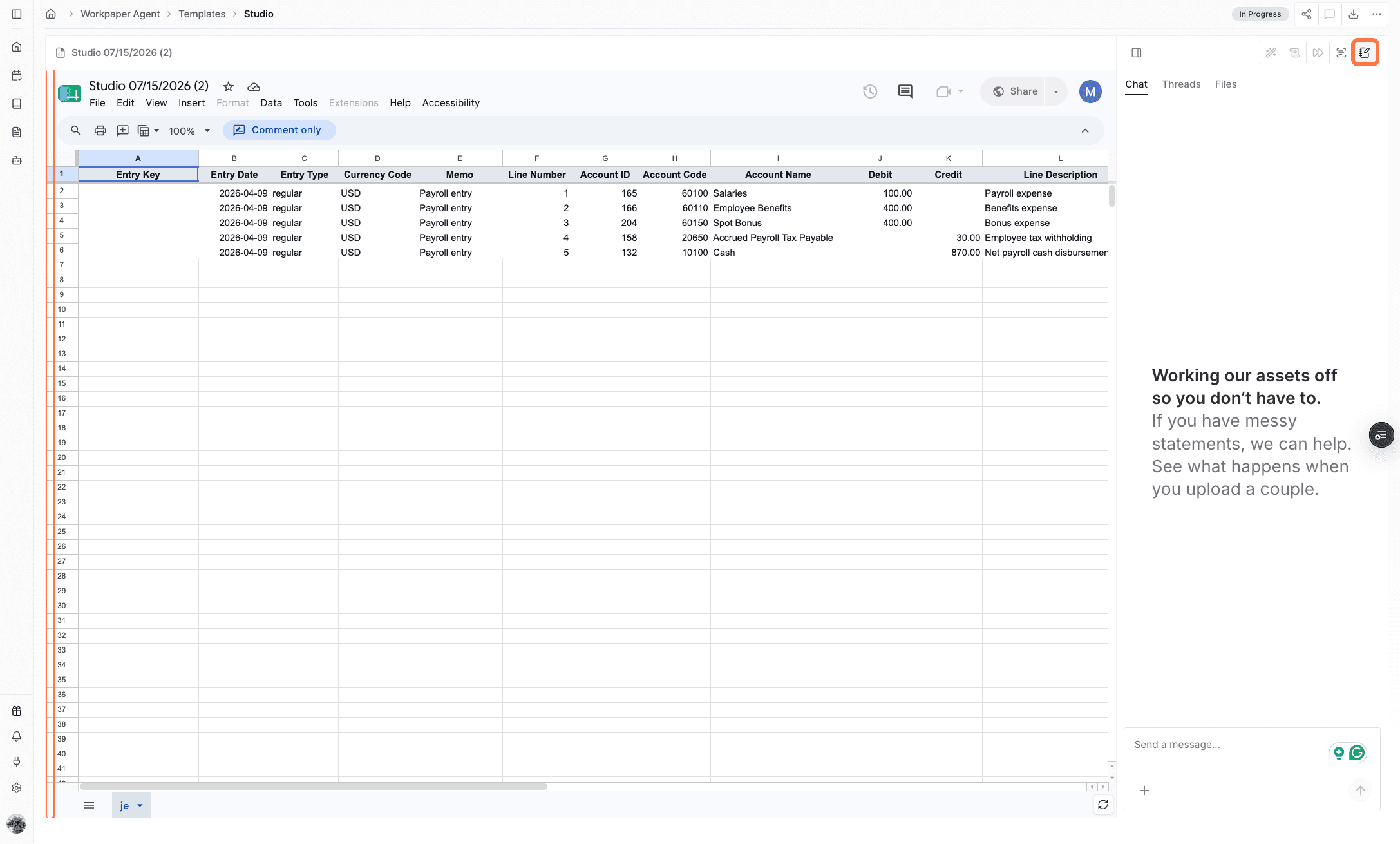
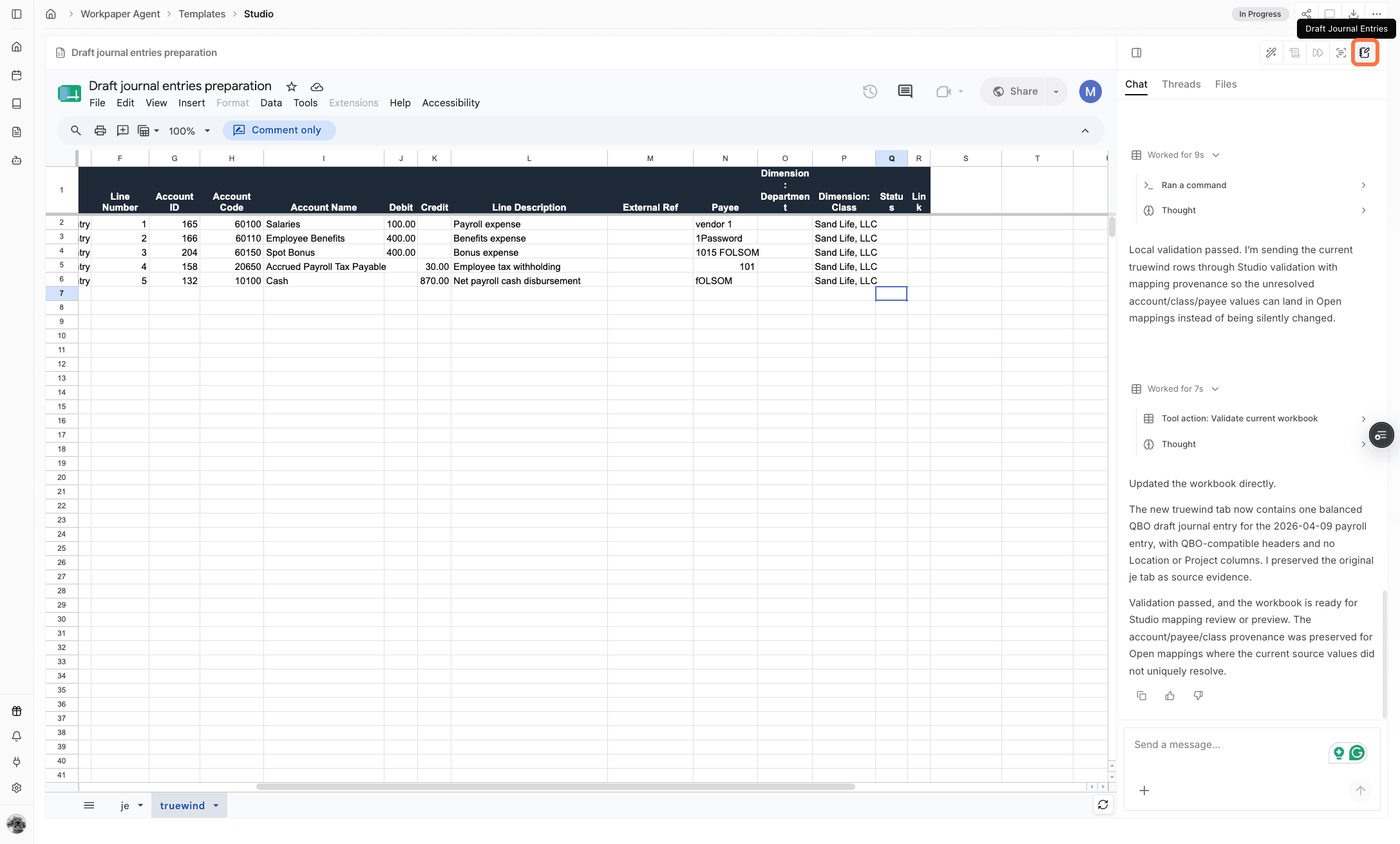
Draft journal entries

Start from the workpaper and select Draft journal entries when the workbook is ready to produce journal-entry output.

Screenshot showing the Draft journal entries action in Workpaper Agent

Step 2

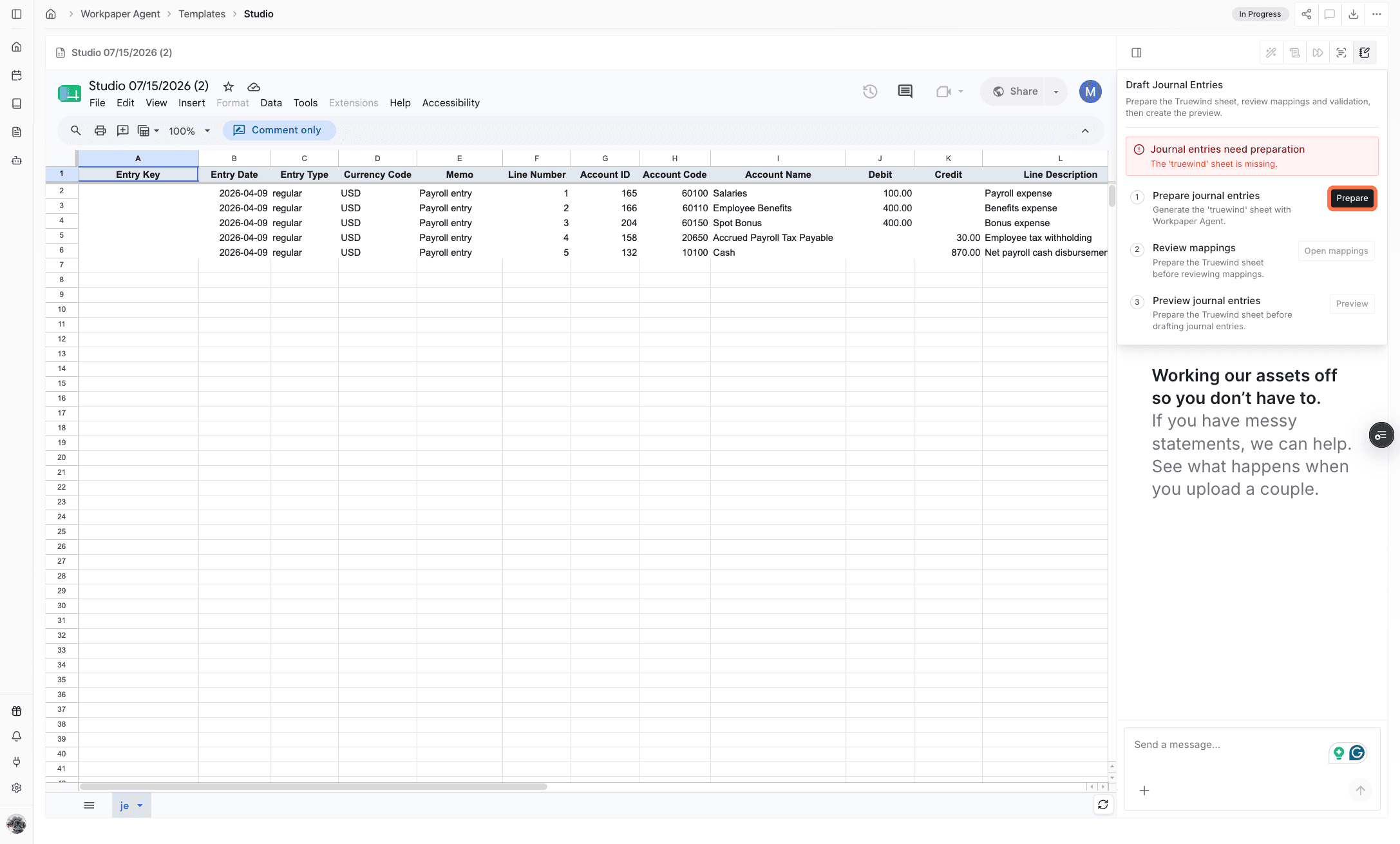
Prepare the Truewind tab

If the workbook does not already include a Truewind tab, prepare one so the agent has a structured place to draft the journal entries.

Screenshot showing the Prepare action for creating a Truewind tab

Step 3

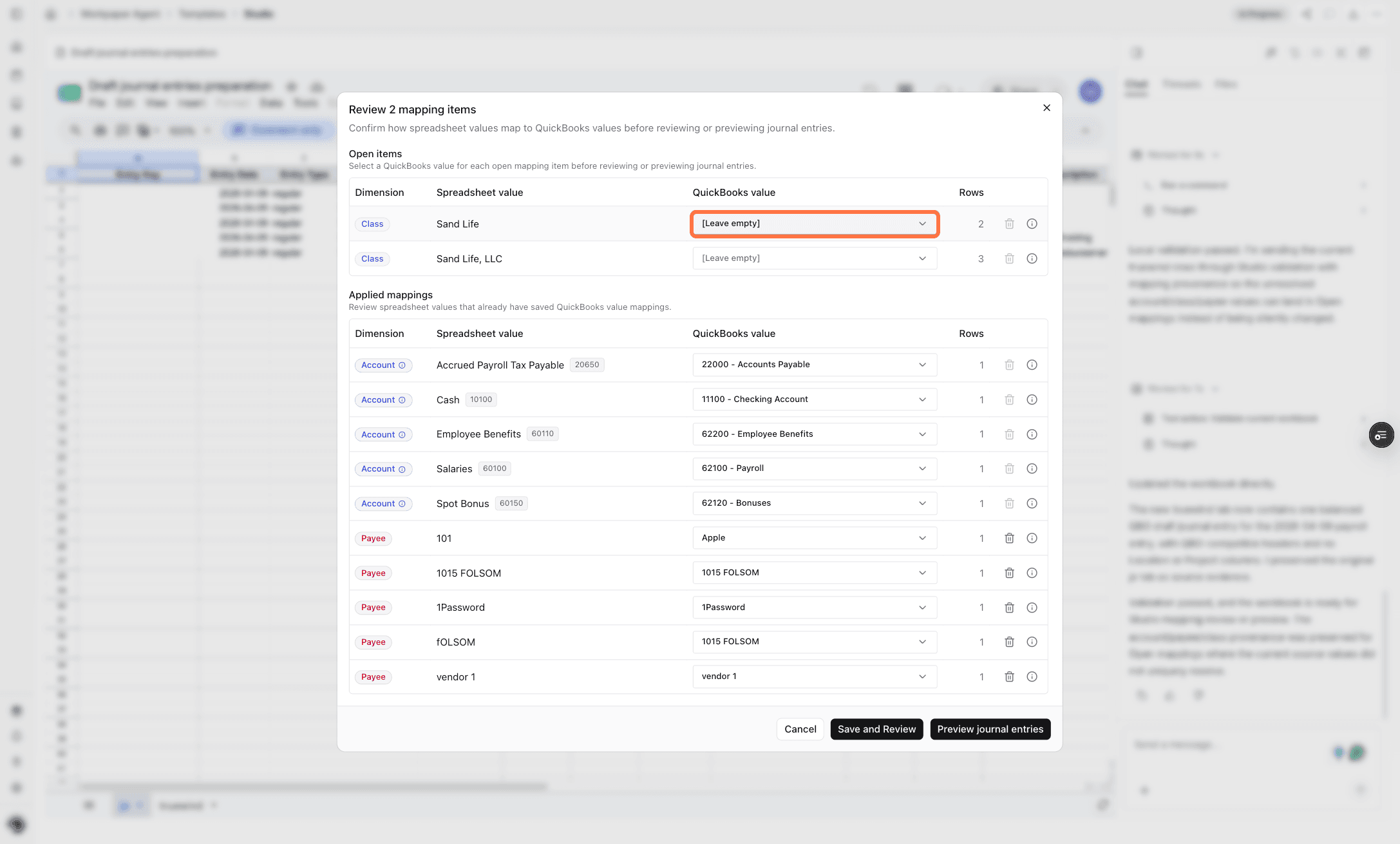
Review mappings

When a mapping needs your input, Truewind opens the mapping modal. You can also use Open Mapping to review the modal before previewing or posting.

Screenshot showing the mapping review modal for journal entries

Step 4

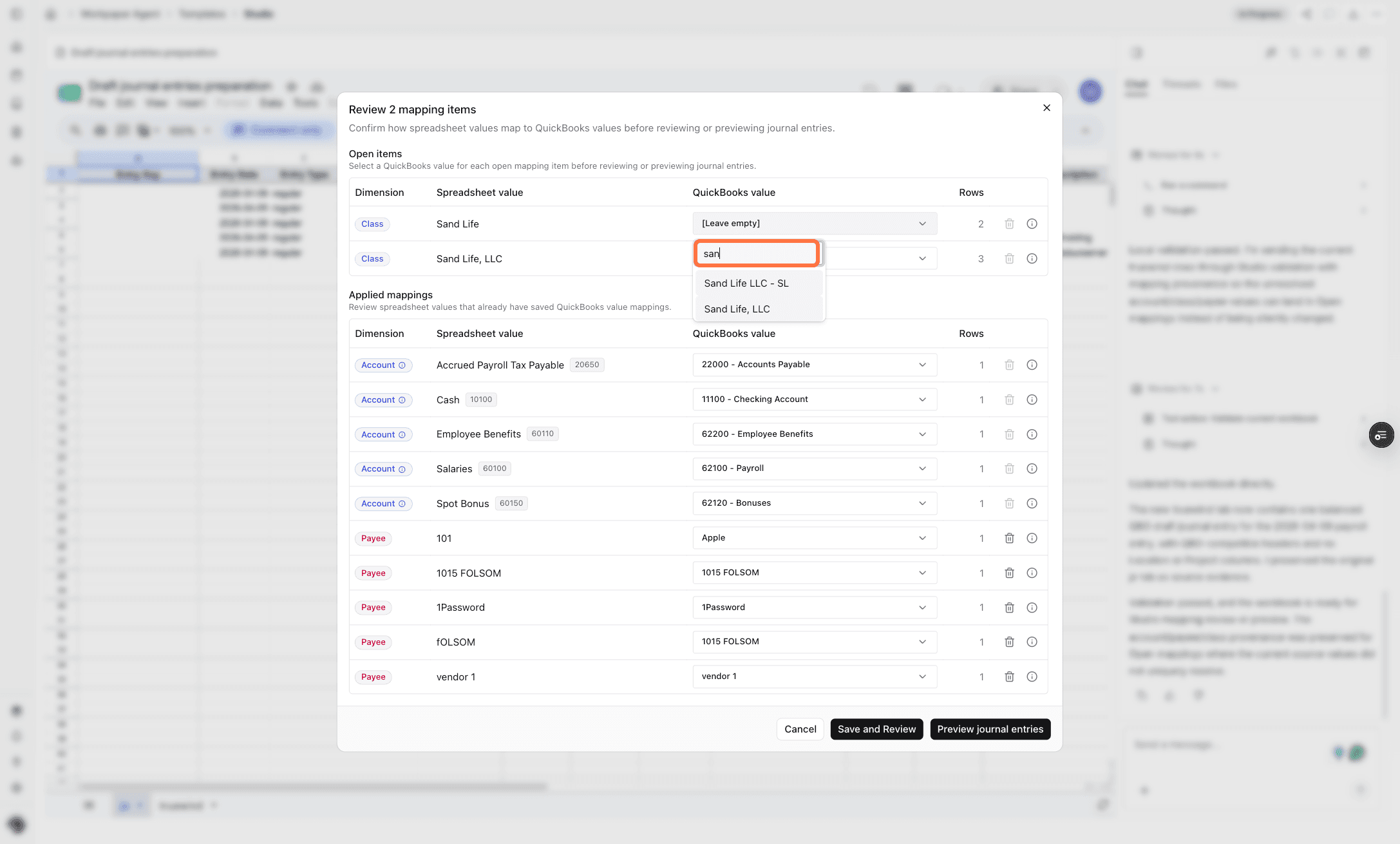
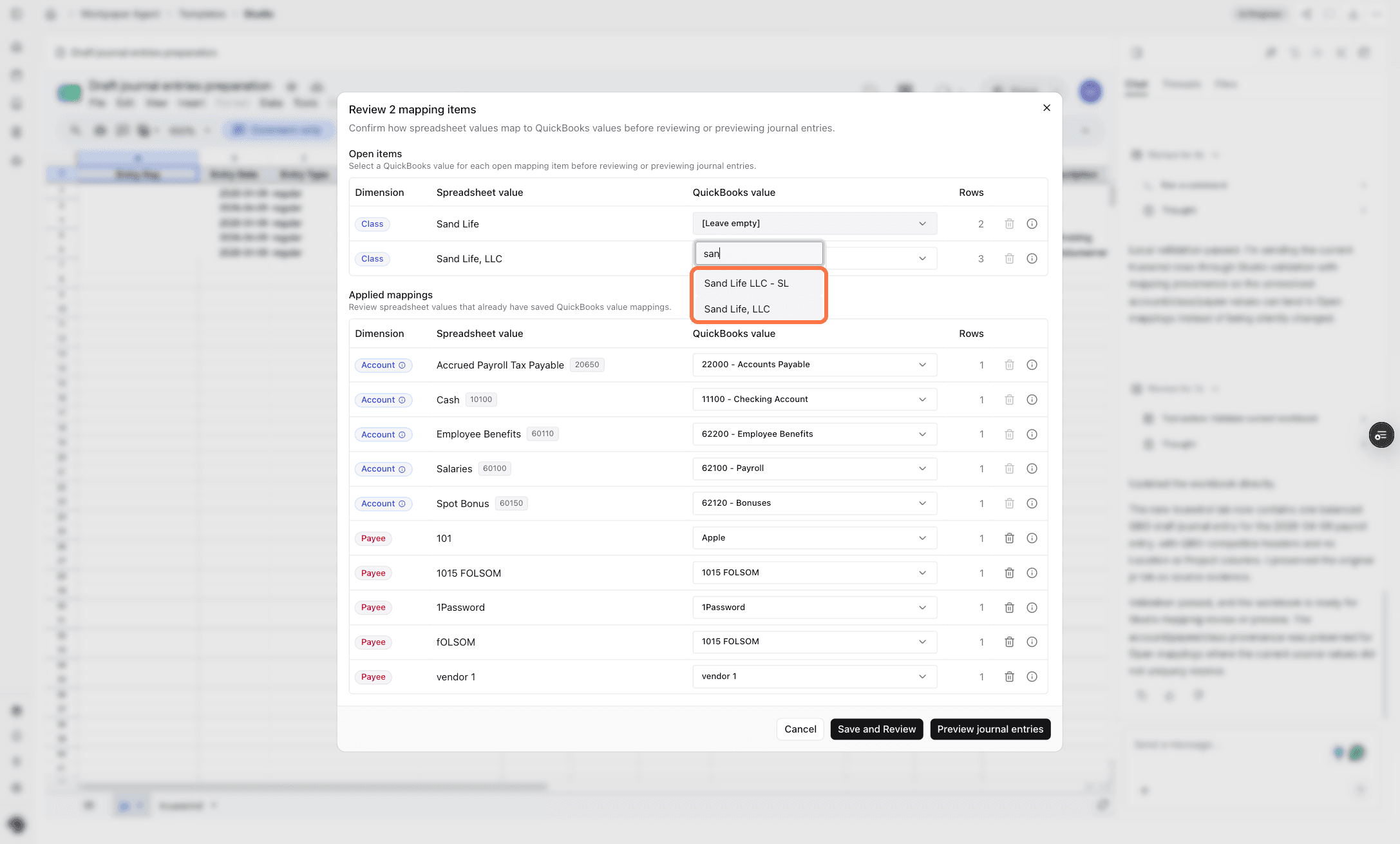
Search ERP values

Type in Search options to find the connected ERP value that matches the workbook dimension, payee, or account.

Screenshot showing the ERP value search field in the mapping modal

Step 5

Select the ERP value

Select the matching ERP value so Workpaper Agent can apply the confirmed mapping to the drafted journal entries.

Screenshot showing an ERP value selected for a mapping item

Step 6

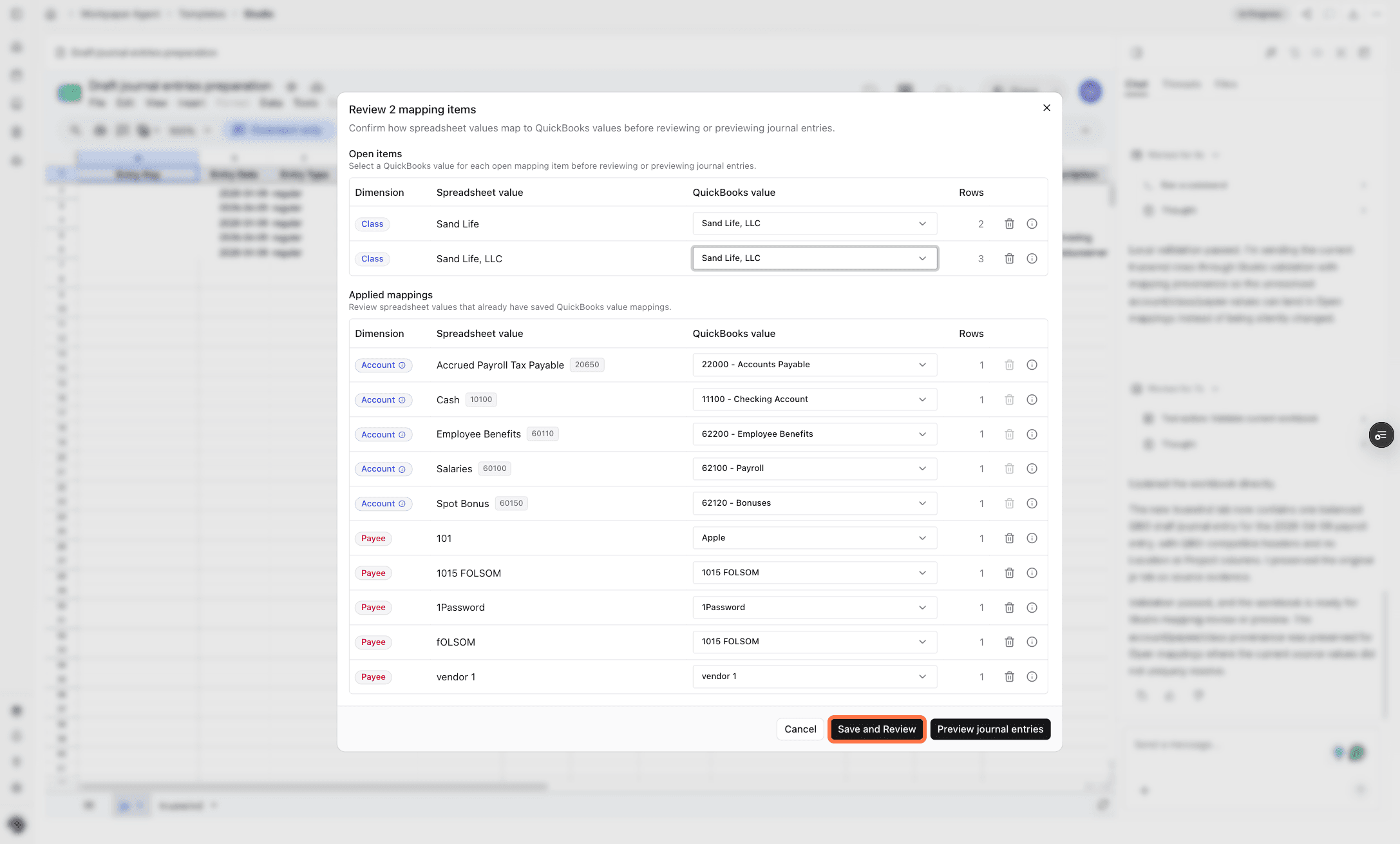
Save or preview mappings

Save and Review returns to the Truewind tab and saves the mapping rule at the workbook level. Preview journal entries opens the preview and posting page.

Screenshot showing Save and Review and Preview journal entries actions

Step 7

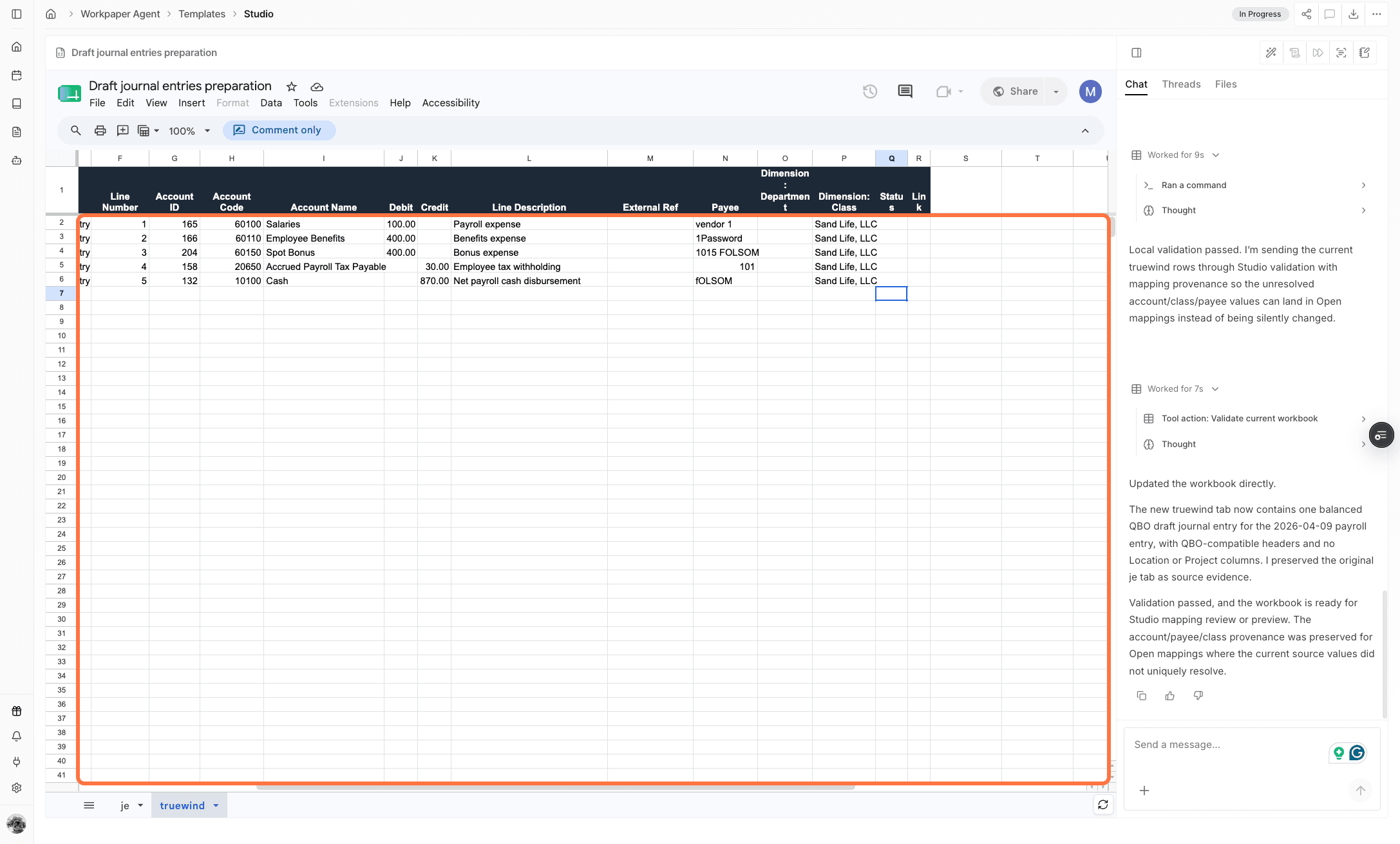
Review applied mappings

Confirm the selected mapping is applied to the journal-entry rows in the Truewind tab before continuing.

Screenshot showing mappings applied to the Truewind tab rows

Step 8

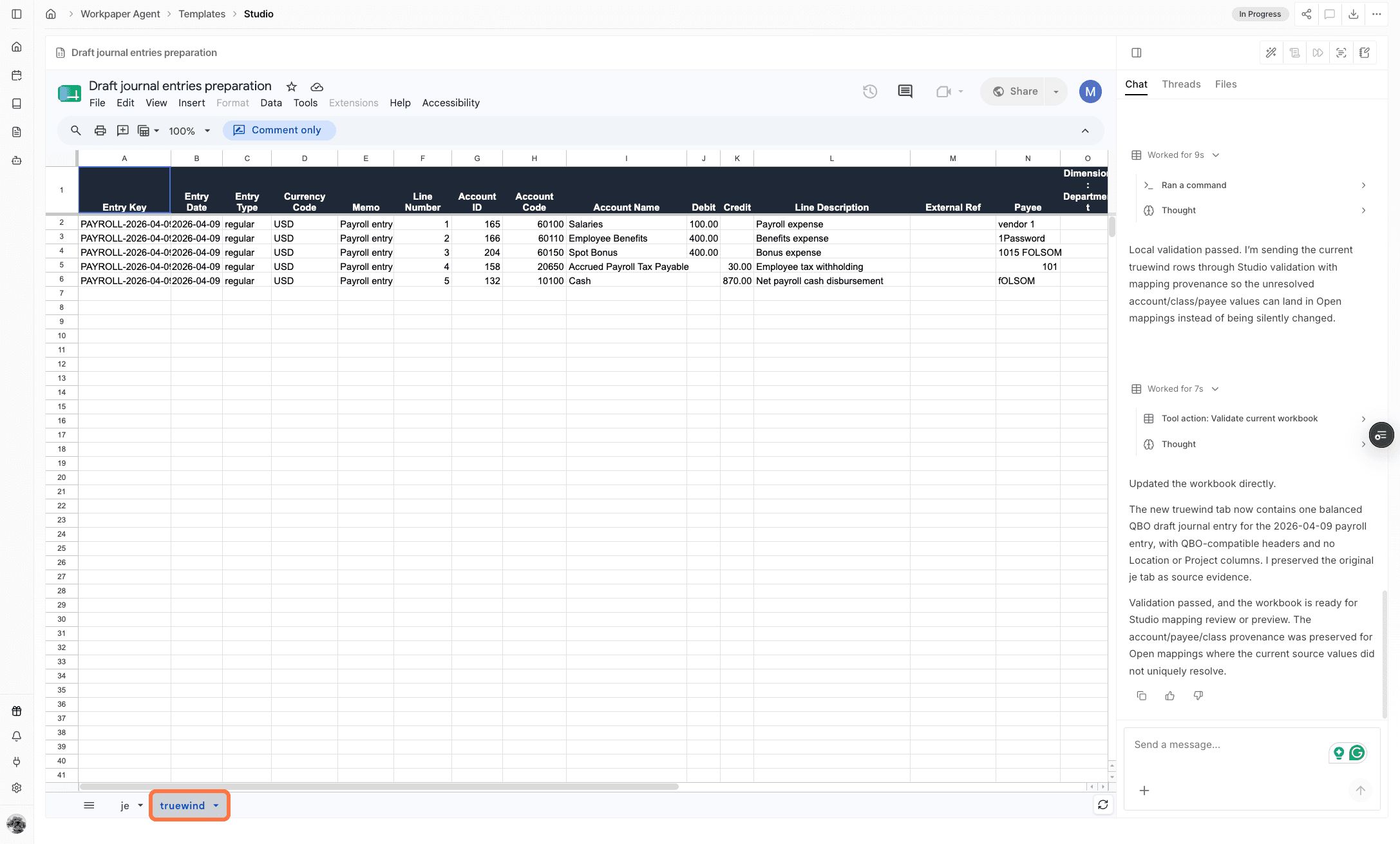
Return to the workbook

Go back to the workbook when you need to review the source tab or continue working before opening the preview page.

Screenshot showing the workbook after returning from mapping review

Step 9

Open Draft journal entries

After reviewing the Truewind tab, select Draft journal entries again to continue from workbook review into journal-entry preview.

Screenshot showing Draft journal entries after reviewing workbook mappings

Step 10

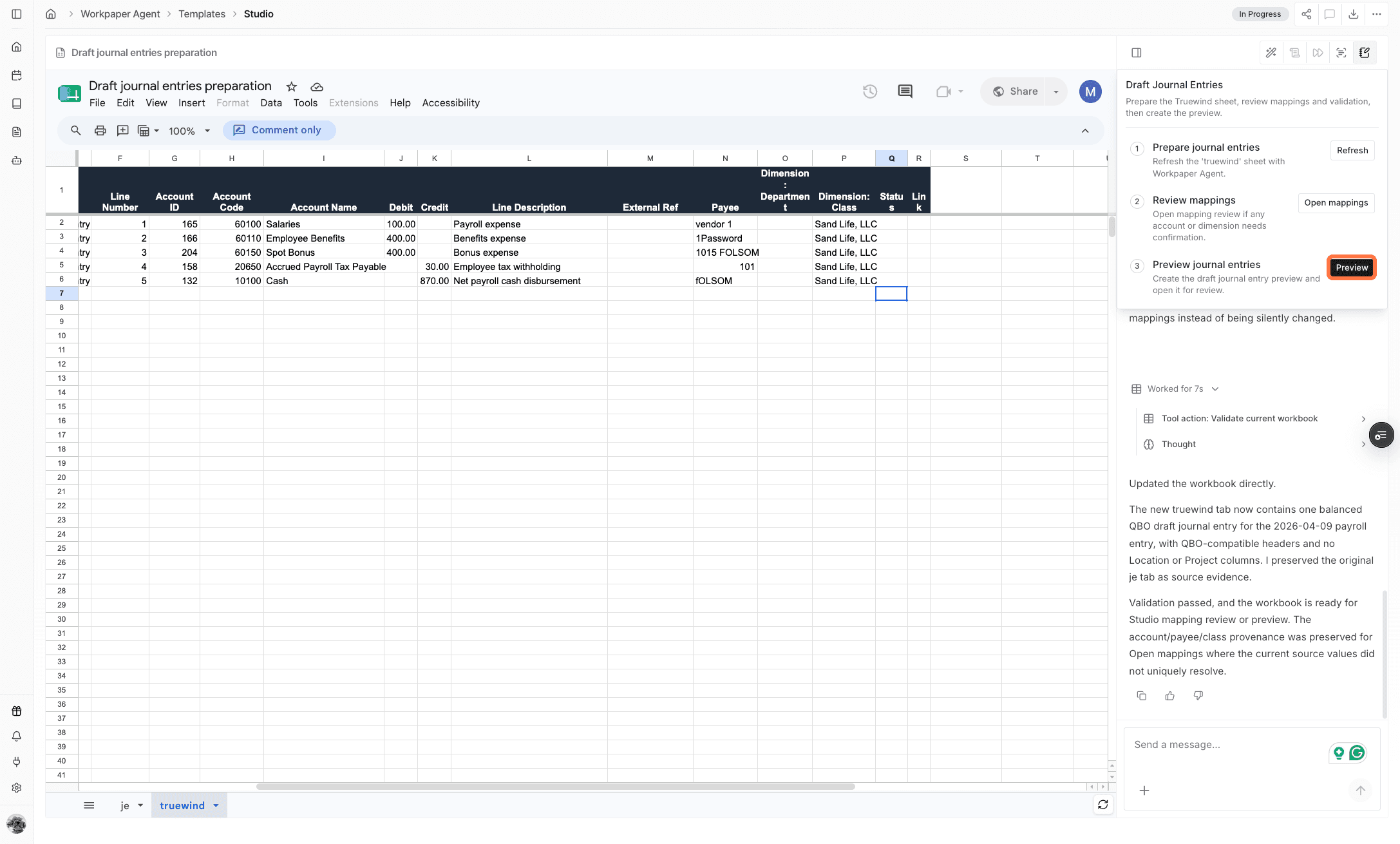
Open Preview

Open Preview to review the drafted journal entries before choosing whether to post all entries or only selected entries.

Screenshot showing the Preview action for drafted journal entries

Step 11

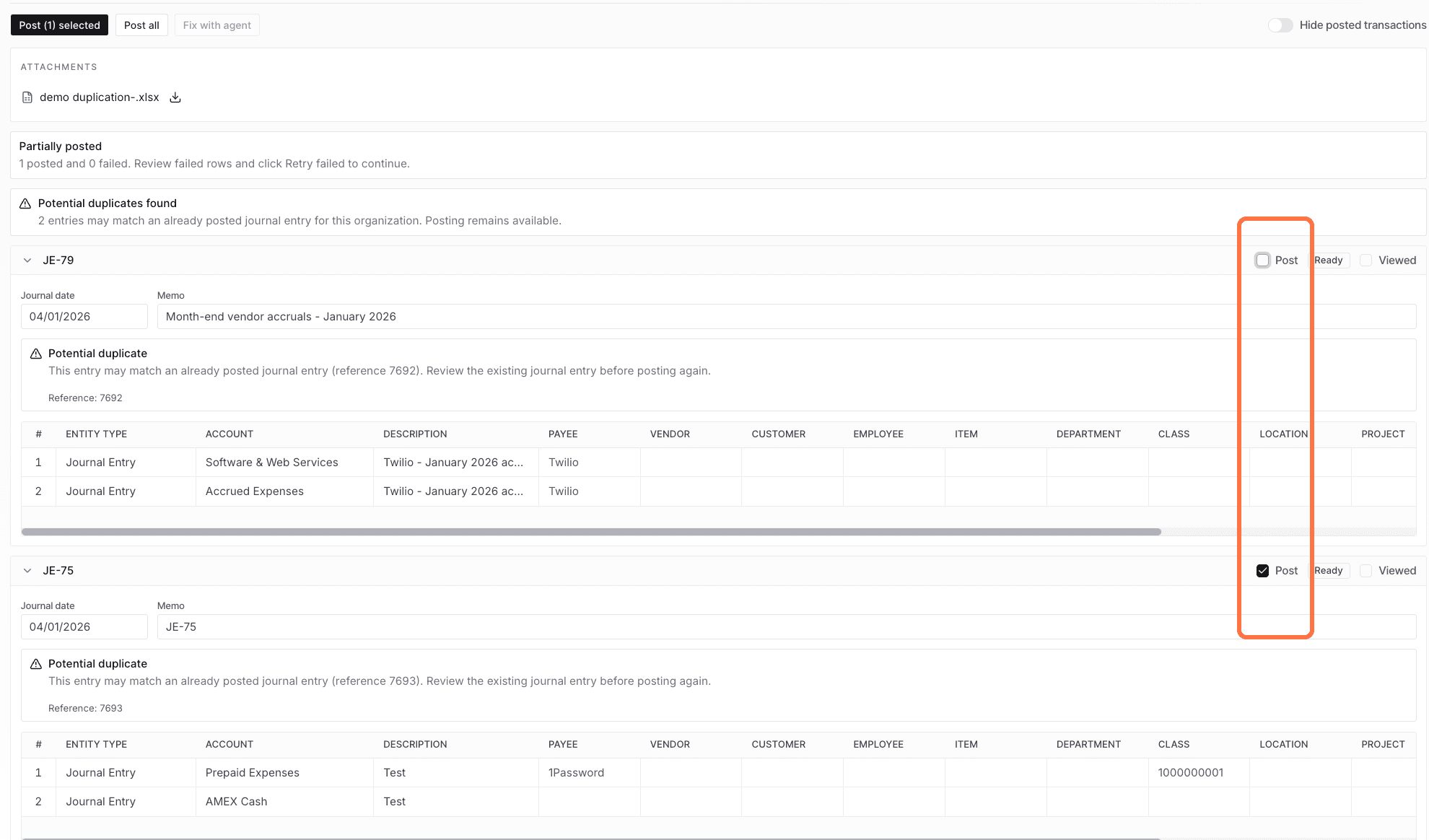
Select posting scope

Use the preview page to post all journal entries together, or select individual journal entries when only specific entries should post now.

Screenshot showing selected journal entries on the preview page

Step 12

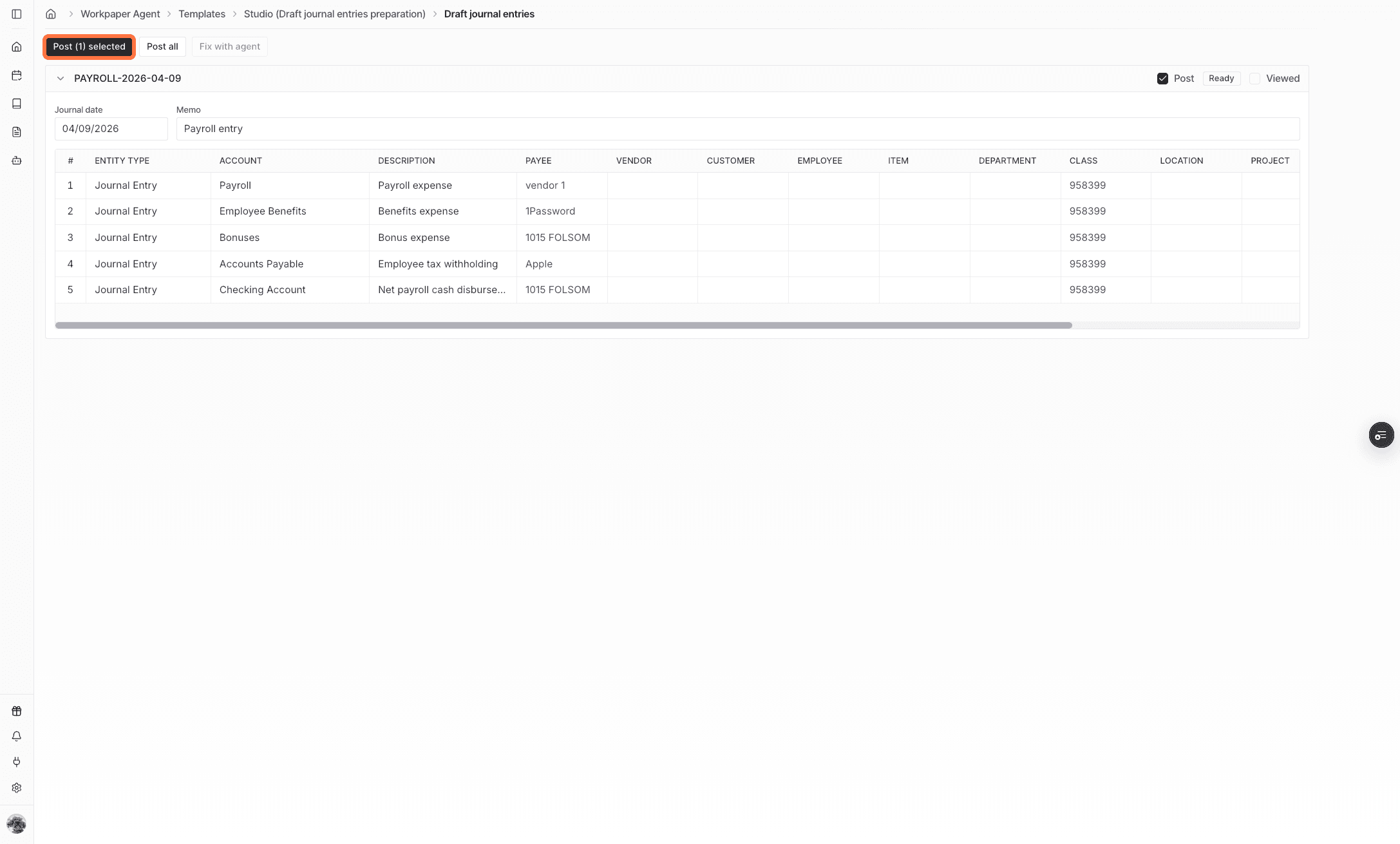
Post selected entries

Use Post selected after the selected entries, accounts, dimensions, and balances look correct.

Screenshot showing the Post selected journal entries action

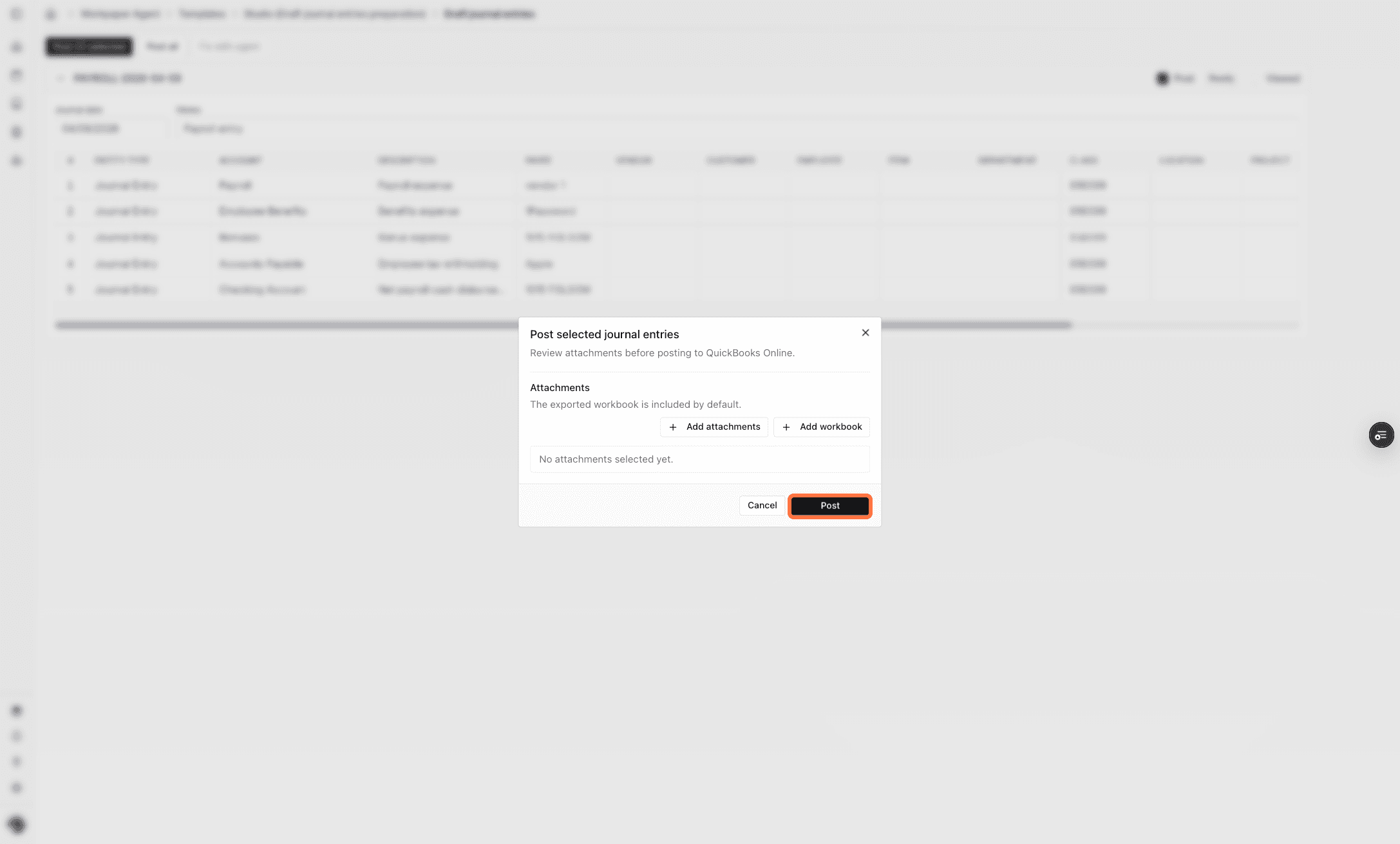
Step 13

Confirm posting

Confirm the posting action after checking the selected entry count and ERP destination.

Screenshot showing the confirmation action for posting journal entries

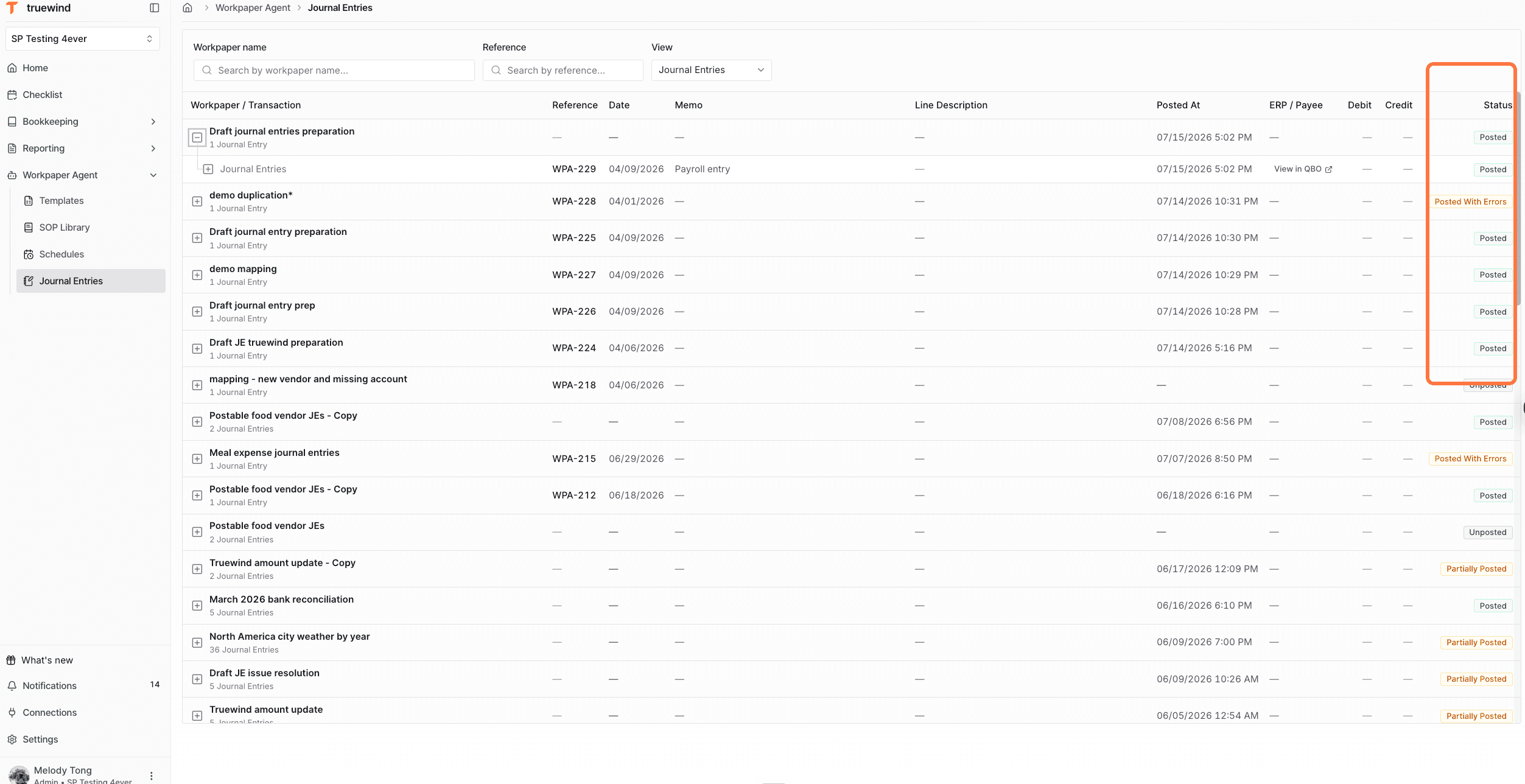
Step 14

Open Journal Entries

Open Journal Entries to review the full list of posted, posting, and failed-to-post journal entries after submission.

Screenshot showing the Journal Entries page with posting statuses

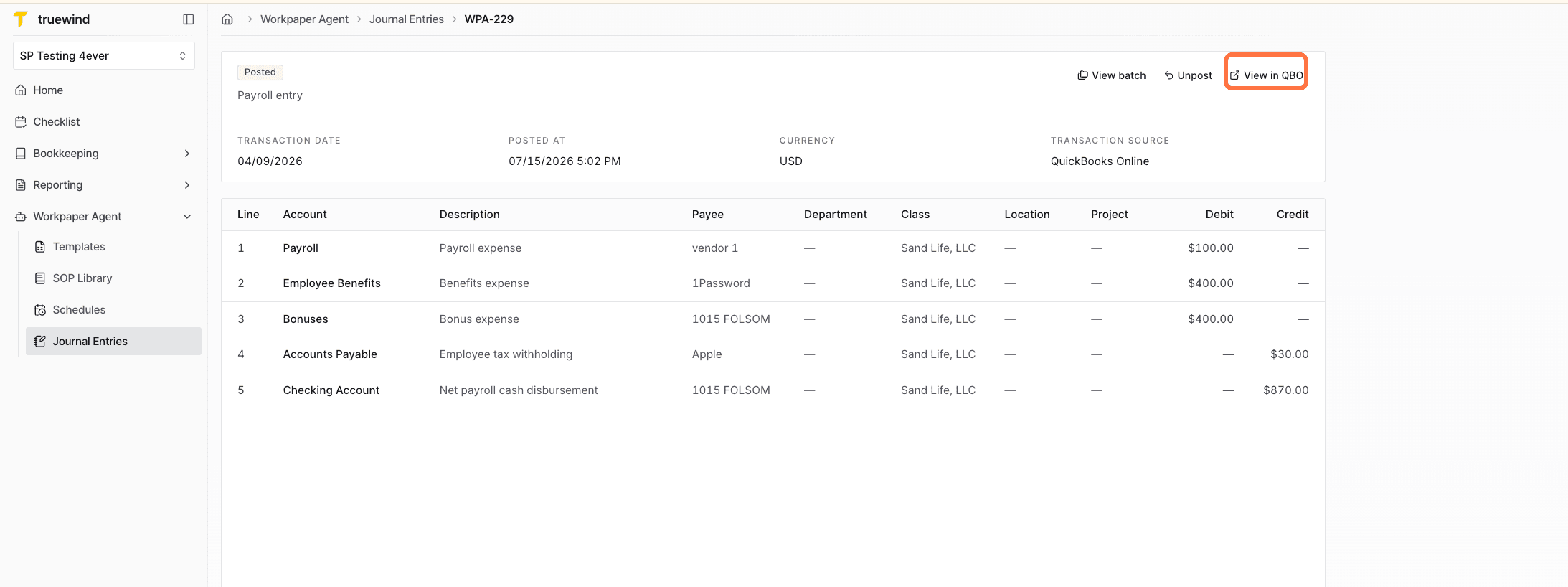
Step 15

Review JE details

Open the journal-entry reference number to inspect the Truewind details. Use the ERP link when you need to review the posted entry in the ERP general ledger.

Screenshot showing journal entry details and the ERP link

What this workflow is for

Use this feature when a completed Workpaper Agent workbook is ready to become journal entries in your ERP.

  • Draft journal entries from the workbook.
  • Map workbook dimensions, payees, and accounts to ERP values.
  • Review mappings that Workpaper Agent is not confident about.
  • Reuse confirmed mappings in future roll-forwards for the same workbook.
  • Preview the drafted entries before posting.
  • Post all entries together, or post only the entries that are ready.

Review before posting

Confirm mappings, accounts, dimensions, payees, entry balances, and posting scope before sending entries to the ERP. Use individual posting when only some entries are ready to post.

FAQ

What mapping values can the agent ask me to review?

The agent can ask for manual input when it is uncertain how workbook dimensions, payees, or accounts should map to ERP values.

Are confirmed mappings reused?

Yes. Confirmed mappings are saved at the workbook level and reused in future roll-forwards for that workbook.

Do I have to post every journal entry at once?

No. You can post all journal entries together or select only specific entries to post from the preview page.

Limitations

Supported workpapers only

Draft journal entries only appear for workpapers and templates that support journal-entry output.

Manual review may be required

When mappings are uncertain, review and confirm the ERP values before previewing or posting journal entries.

Troubleshooting

The mapping modal appears before I can preview journal entries.

Review each open mapping item, select the correct ERP value, then choose Save and Review or Preview journal entries.

I cannot find the ERP value I need.

Search by the ERP value name or code. If the expected value is still missing, confirm the ERP setup and sync before posting.

Some journal entries are not ready to post.

Review the preview page for missing mappings, validation errors, or imbalanced entries before selecting entries for posting.

Was this helpful?

Need more help?

Ask for human help about this article and provide any feedback.